Create professional waterfall charts to visualize how initial values are affected by positive and negative changes. Perfect for financial analysis, profit/loss breakdowns, and showing cumulative effects.
Not sure how to format your data? to see how it works, or upload your own data to get started!
A waterfall chart is a data visualization that shows how an initial value is affected by a series of positive or negative changes. The chart resembles a waterfall, with floating bars representing incremental changes that lead to a final cumulative value. Each bar starts where the previous one ended, creating a cascading effect.
Follow these steps to create a waterfall chart by hand:
Follow these steps to build your waterfall chart data from scratch:
Identify your starting point, all changes (positive and negative), and the logical sequence. Think about the story you want to tell.
Arrange your data to flow naturally: Starting value → Positive changes → Negative changes → Ending value. The order should make sense to your audience.
starting/initial: First value only (full bar from zero)
positive: Gains, income, additions (floating upward bars)
negative: Costs, losses, deductions (floating downward bars)
ending/final: Last value only (full bar, auto-calculated)
Key rule: The sign of your number should match the type. Positive changes get positive numbers (+45000), negative changes get negative numbers (-15000).
Always use 0 for your ending value. The waterfall chart will automatically calculate and display the correct cumulative result. This prevents math errors!
Let's walk through creating a waterfall chart from scratch using real budget data.
category,value,type,group
Starting Balance,2000,starting,Balance
Salary,4500,positive,Income
Freelance Work,800,positive,Income
Rent,-1200,negative,Housing
Utilities,-300,negative,Housing
Groceries,-450,negative,Living
Gas,-120,negative,Transport
Insurance,-250,negative,Insurance
Entertainment,-180,negative,Fun
Dining Out,-220,negative,Fun
Emergency Fund,-500,negative,Savings
401k,-600,negative,Savings
Ending Balance,0,ending,BalanceNotice the structure that makes this work:
Order matters: We start with "Starting Balance," then list all the changes in logical order (income first, then expenses by category), and end with "Ending Balance."
Types are crucial: "starting" and "ending" create full bars from zero. "positive" and "negative" create floating bars that show changes.
Groups for color-coding: Income is green, different expense categories get different colors, and balance items are neutral.
Negative values: Expenses are negative numbers because they reduce your balance.
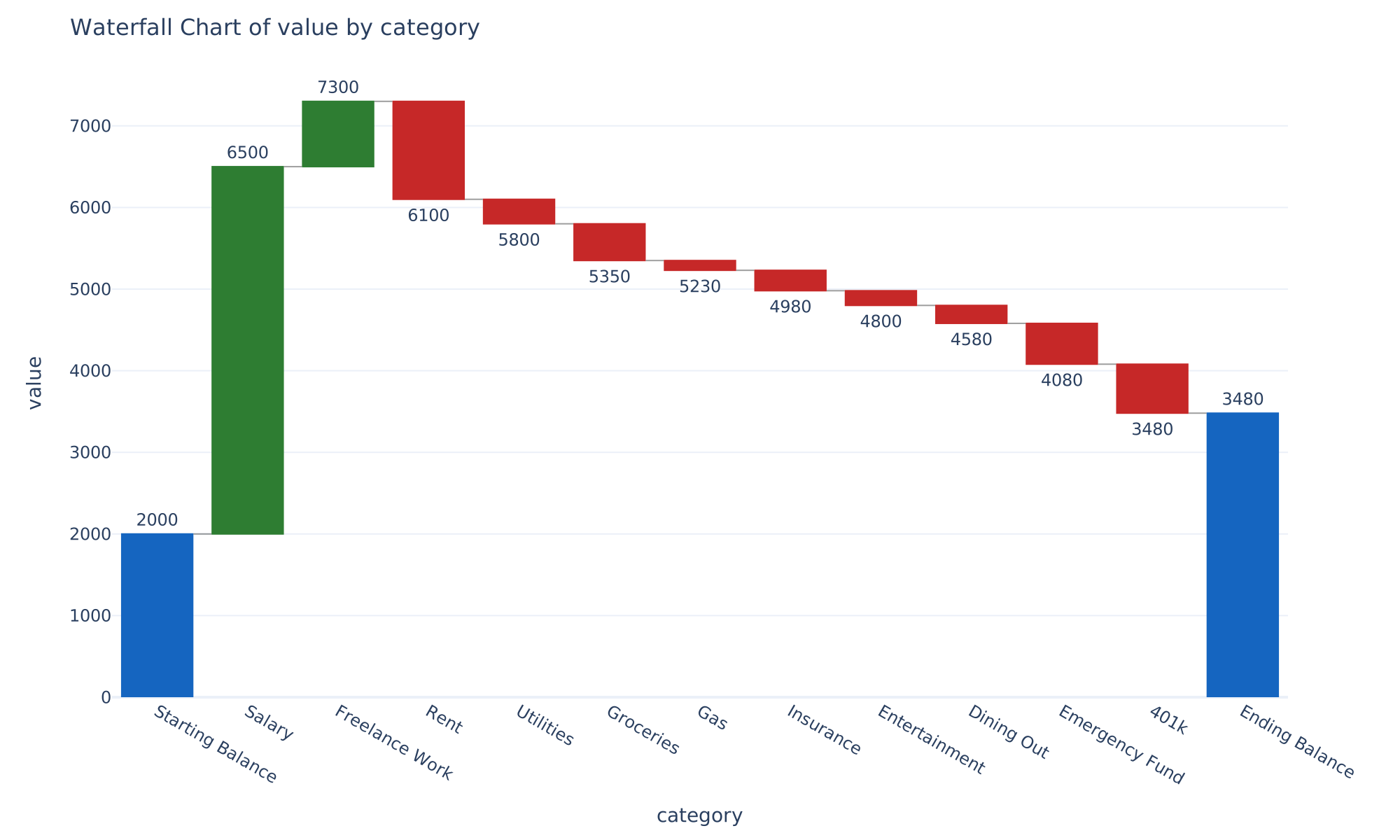
Once you generate the chart, here's what you'll see:
The income story: Your salary of $4,500 plus $800 freelance work shoots your balance up to $7,300. The green bars make it obvious where your money comes from.
Housing reality check: Rent and utilities together ($1,500) are your biggest expense category - more than a third of your income. The red bars show this clearly.
The savings discipline: You're putting away $1,100 total ($500 emergency + $600 retirement). That's about 15% of gross income - pretty solid!
Fun money tracking: Entertainment and dining out total $400. The chart makes it easy to see if you're comfortable with this "fun budget."
Net result: You end up with $3,480 (up $1,480 from your starting $2,000). The final bar shows your success at growing your balance this month.
When analyzing a waterfall chart, focus on these key elements:
A customized R function to create a waterfall chart using ggplot2.
library(tidyverse)

# sample data from example above
budget_data <- tibble(
  category = c("Starting Balance", "Salary", "Freelance Work", "Rent",
               "Utilities", "Groceries", "Gas", "Insurance",
               "Entertainment", "Dining Out", "Emergency Fund", "401k", "Final Balance"),
  value = c(2000, 4500, 800, -1200, -300, -450, -120, -250, -180, -220, -500, -600, 0),
  type = c("starting", "positive", "positive", "negative", "negative",
           "negative", "negative", "negative", "negative", "negative",
           "negative", "negative", "ending"),
  group = c("Balance", "Income", "Income", "Housing", "Housing",
            "Living", "Transport", "Insurance", "Fun", "Fun",
            "Savings", "Savings", "Balance")
)

# Function to create waterfall chart
create_waterfall <- function(data) {

  # Calculate positions for waterfall effect
  waterfall_data <- data |>
    mutate(
      cumulative = cumsum(ifelse(type == "ending", 0, value)),

      # Calculate start and end positions for each bar
      start = case_when(
        type == "starting" ~ 0,
        type == "ending" ~ 0,
        TRUE ~ lag(cumulative, default = 0)
      ),

      end = case_when(
        type == "starting" ~ value,
        type == "ending" ~ cumulative,
        TRUE ~ cumulative
      ),

      # Create colors based on type
      color = case_when(
        type == "starting" | type == "ending" ~ "Total",
        value > 0 ~ "Positive",
        value < 0 ~ "Negative"
      ),

      # Create labels
      label = case_when(
        type == "ending" ~ round(cumulative, 0),
        TRUE ~ round(value, 0)
      ),

      # Position for category labels
      category_num = row_number()
    )

  # Create the plot
  p <- ggplot(waterfall_data, aes(x = category_num)) +

    # Draw the main bars
    geom_rect(aes(xmin = category_num - 0.4, xmax = category_num + 0.4,
                  ymin = start, ymax = end, fill = color),
              color = "white", linewidth = 0.5) +

    # Add connector lines (optional)
    geom_segment(data = waterfall_data[-nrow(waterfall_data), ],
                 aes(x = category_num + 0.4, xend = category_num + 1 - 0.4,
                     y = end, yend = end),
                 linetype = "dashed", color = "gray50", alpha = 0.7) +

    # Add value labels on bars
    geom_text(aes(x = category_num, y = end + ifelse(value >= 0, 100, -100),
                  label = scales::comma(label)),
              size = 3, hjust = 0.5) +

    # Customize colors
    scale_fill_manual(values = c("Positive" = "#2E7D32",
                                 "Negative" = "#C62828",
                                 "Total" = "#1565C0"),
                      name = "Type") +

    # Customize axes
    scale_x_continuous(breaks = waterfall_data$category_num,
                       labels = waterfall_data$category,
                       expand = c(0.02, 0.02)) +
    scale_y_continuous(labels = scales::comma_format()) +

    # Add labels and theme
    labs(title = "Monthly Budget Waterfall Chart",
         subtitle = "How your money flows from starting to ending balance",
         x = "Category",
         y = "Amount ($)",
         caption = "Data: Personal Budget Example") +

    theme_minimal() +
    theme(
      axis.text.x = element_text(angle = 45, hjust = 1),
      panel.grid.major.x = element_blank(),
      panel.grid.minor = element_blank(),
      legend.position = "bottom"
    )

  return(p)
}

# Create and display the chart
waterfall_chart <- create_waterfall(budget_data)
print(waterfall_chart)

# Optional: Save the chart
# ggsave("waterfall_chart.png", waterfall_chart, width = 12, height = 8, dpi = 300)

# calculated data to understand the logic
print("Waterfall calculation breakdown:")
budget_data |>
  mutate(
    cumulative = cumsum(ifelse(type == "starting", value,
                               ifelse(type == "ending", 0, value))),
    start_pos = case_when(
      type == "starting" ~ 0,
      type == "ending" ~ cumulative - value,
      TRUE ~ lag(cumulative, default = 0)
    ),
    end_pos = case_when(
      type == "ending" ~ cumulative,
      TRUE ~ cumulative
    )
  ) |>
  select(category, value, type, start_pos, end_pos) |>
print()Using Plotly to create an interactive waterfall chart with Python.
import plotly.graph_objects as go
import pandas as pd

# Sample data: Monthly Budget Analysis
df = pd.DataFrame({
    "category": [
        "Starting Balance", "Salary", "Freelance Work", "Rent",
        "Utilities", "Groceries", "Gas", "Insurance",
        "Entertainment", "Dining Out", "Emergency Fund", "401k",
        "Ending Balance"
    ],
    "value": [
        2000, 4500, 800, -1200, -300, -450, -120, -250,
        -180, -220, -500, -600, 0
    ],
    "type": [
        "starting", "positive", "positive", "negative", "negative",
        "negative", "negative", "negative", "negative", "negative",
        "negative", "negative", "ending"
    ],
})

# Map types to Plotly measure names
measure_map = {
    "starting": "absolute",
    "positive": "relative",
    "negative": "relative",
    "ending": "total",
}
df["measure"] = df["type"].map(measure_map)

# Build the waterfall chart
fig = go.Figure(
    go.Waterfall(
        x=df["category"],
        y=df["value"],
        measure=df["measure"],
        textposition="outside",
        text=[f"${v:,.0f}" if v != 0 else "" for v in df["value"]],
        connector={"line": {"color": "gray", "dash": "dot", "width": 1}},
        increasing={"marker": {"color": "#2E7D32"}},
        decreasing={"marker": {"color": "#C62828"}},
        totals={"marker": {"color": "#1565C0"}},
    )
)

fig.update_layout(
    title="Monthly Budget Waterfall Chart",
    yaxis_title="Amount ($)",
    xaxis_title="Category",
    showlegend=False,
    yaxis={"tickformat": "$,.0f"},
    xaxis={"tickangle": -45},
    template="plotly_white",
    height=500,
)

fig.show()

# Optional: Save as image or HTML
# fig.write_image("waterfall_chart.png", width=1200, height=600, scale=2)
# fig.write_html("waterfall_chart.html")A bar chart shows independent values side by side, while a waterfall chart shows how values accumulate sequentially. Each bar in a waterfall chart starts where the previous one ended, revealing the cumulative effect of positive and negative changes.
The floating bars cascade downward (or upward) like a waterfall. It is also known as a bridge chart, flying bricks chart, or Mario chart because the bars appear to float in mid-air, connected by thin lines.
Use a waterfall chart when you need to show how a starting value changes through a series of additions and subtractions to reach a final value. A stacked bar chart is better for comparing part-to-whole relationships across multiple categories simultaneously.
Enter the negative number as your starting value (e.g., -5000 for a deficit). The chart will correctly anchor the starting bar below zero and track subsequent changes from that point.
Yes. Use the "Group By" option to split your data into separate waterfall series. Each group gets its own color and is displayed as a separate trace on the same chart, making it easy to compare scenarios side by side.
It is optional but recommended. Without a type column, the chart treats all values as relative changes. With a type column, you can mark starting and ending values as absolute totals, which anchor them at zero and make the chart easier to read.
